Q1: Are the tens pads better for full body scans over the sample digitizer?
A: Here are some information shared by our users for your review:
1. The Sample Digitizer is good for killing pathogens in a sample, but if your pathogen is not in the sample but in your body, the TENS will work better. Also, there is no way to do biofeedback using the Remote and GX (Although you can use Spooky2 Pulse and the Remote, you are still wired to the computer).
2. I have recently used GX with the Scalar Digitizer and GX with Sample digitizer on myself and 2 family members. The results bear no resemblance to each other nor is there any real consistency when repeated. So to date, I remain to be convinced about the veracity of biofeedback. I have had excellent results using XM generator and remote frequency transmission.
For more details, please check the link:
https://www.facebook.com/groups/spooky2/permalink/1290339531127947/
Q2: What computer do you recommend getting I have a Mac currently?
A: Spooky2 software is compatible with Windows XP, Windows Vista, Windows 7, Windows 8, Windows 8.1, Windows 10, Windows 11, and Windows 11 Pro.
Q3: If you didn’t select healing or killing, what happens?
A: The frequencies will be ran under whatever settings were loaded at the time you added the frequency sets.
A preset will just update the settings to a known state (that which was saved in the preset).
If you click on the generator channel control button, it will show you what settings were in effect when you loaded it (provided that it is still running).
For more details, please check the link:
http://www.spooky2.com/forums/viewtopic.php?f=5&t=5102
Q4: Where are Spooky2 data stored?
A: Saved Presets – C:\Spooky2\Preset Collections\User
Saved Programs – C:\Spooky2\Custom.csv
Saved Biofeedback – C:\Spooky2\BFB_Frequencies.csv
Biofeedback Raw Data – C:\Spooky2\ScanData
There are two different file formats for databases used in Spooky2 – ZIP and CSV. The ZIP format we use is encrypted, cannot be manually unzipped, and cannot be read by any software but Spooky2. This is to help prevent third-party profiteering on planned future frequency development, and the main database now comes in this format.
Please note once again that this can only be unzipped and read by Spooky2.
CSV files can also be read and loaded as custom databases, and these can be edited and used normally.
Q5: What are the differences between presets and programs?
A: 1. Presets are organized setups. When you choose one, it automatically loads all the necessary settings in the software. When running factory presets such as Morgellons, you do not need to choose any programs as they are already selected in the presets. “Shell Presets” on the other hand, enable you to load any number of various setups one after the other and choose the frequency programs that suit you.
2. Programs are collections of individual frequencies that are related to a specific condition. Frequency sets make up programs, and multiple programs become sequences.
For more information, please read this blog:
https://www.spooky2-mall.com/blog/understanding-presets-and-programs-improve-your-exploration-of-spooky2/
For how to select presets and programs, please read this blog:
https://www.spooky2-mall.com/blog/how-to-select-and-run-presets-and-programs/
Q6: Can spooky2 run on a Linux-based PC?
A: Spooky2 would not run on this OS as it is based on Linux. We recommend you pick up a pre-owned Windows PC and dedicate it to Spooky2. Alternatively, you can use BootCamp to create a Windows partition, or purchase virtualization software. You can download our helpful “Spooky2 in Linux or Mac” PDF guide here under “Useful Documents.”
Please check the link:
http://www.spooky2.com/downloadsPage/index.html
Q7: If we do a High Frequency BFB scan using the silver GX Pro, Can we run the results using the Blue XM generator on another PC setup with the same level of efficiency? kindly advise Thanks
A: Yes, no need to worry, you can do it on the XM generator.
Q8: I’m getting familiar with plasma. Can you do plasma treatments 24/7 or should you limit due to strength? What is best placement? Directly over the area? What if it’s a general overall body treatment as opposed to one hot spot?
A: You can run it daily but it’s quite beneficial to take breaks as it will enable the immune system and elimination pathways to catch up.
For more details, please check the link:
https://www.facebook.com/groups/spooky2/permalink/1476692335825998/
Yes, it will be better to put it directly over the area, and for different tubes, the phanotron tube is for concentrated energy on a given issue, like a localized cancer, while the long tube is for scattered issues in the whole body, like disseminated pathogens.
Q9: How do we delete the old program after downloading the new one?
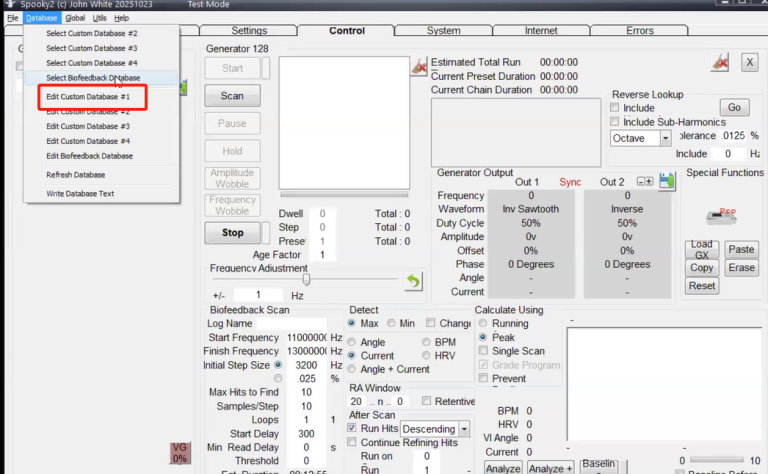
A:1. You can go to the software, then choose database – Edit Custom database #1. Then you will see all your own programs and you can edit or delete them.